Gambling, profile and more
Install Nullbelt as an App on iPhone and Android
Play Nullbelt on your phone: install it as an app on iPhone, Android or desktop, plus the top-bar timers, quick actions, hotkeys and in-game notifications.
On this page
Nullbelt is built mobile-first: it plays in your phone's browser, and you can install the Nullbelt app to your home screen in a few taps, with no app store needed. This guide shows how to install it on iPhone, Android and desktop, then explains the top bar's timers and quick actions, keyboard shortcuts, and how notifications work in the game.
Playing Nullbelt on your phone#
Go to nullbelt.com in any modern phone browser and log in. Everything in the game works on a phone screen:
- The tab bar at the bottom of the screen holds the main sections, with More for the rest. From 1024 px wide (tablets in landscape and computers) it becomes a side menu.
- The top bar shows your rank, your activity timers, your credits on hand and in the bank, your Flux, Recruit and the notifications bell.
- Every icon and number has an info card. Tap it on a phone, or hover on a computer, to see what it is and how to get more.
- Your progress lives on the server. You can switch between phone and computer at any time.
How to install the Nullbelt app (PWA)#
Installed, Nullbelt runs full screen with its own icon, opens straight to your station, and updates itself. It's a web app (a PWA), so it installs from the browser, not from the App Store or Google Play.
You don't have to go looking for it. A few seconds after your first activity run in a session, an install card slides in, never the moment you arrive:
| Your browser | The card | Its buttons |
|---|---|---|
| Chrome or Edge (Android or computer) | Install Nullbelt: Full screen, its own icon, one tap from your station. | Install opens the browser's own install dialog. Not now hides the card. |
| iPhone or iPad | Add Nullbelt to your Home Screen, with Safari's three steps | Got it hides the card. |
Hide the card, or cancel the browser's dialog, and it stays quiet for 14 days on that browser. It never shows inside the installed app. Settings → App always shows your install status and the install button or steps, whenever you want them, snoozed or not.
Install on iPhone or iPad (Safari)#
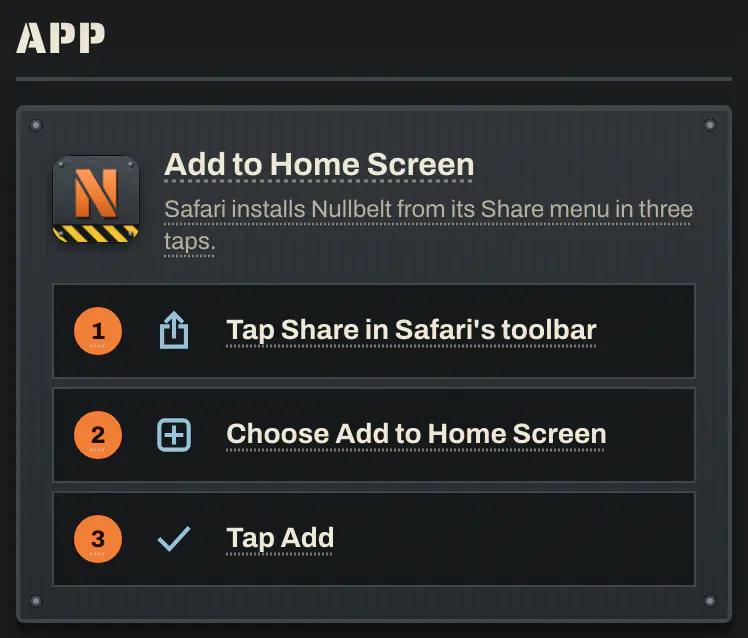
- Open nullbelt.com in Safari.
- Tap Share in Safari's toolbar (the square with an arrow pointing up).
- Choose Add to Home Screen.
- Tap Add.
Nullbelt now has its own icon on your Home Screen and opens full screen, with the game drawn neatly around the notch and the home indicator.
Note
On iPhone and iPad the game's card and Settings → App give Safari's steps. If you play in another browser on your iPhone, open nullbelt.com in Safari to add it to your Home Screen.
Install on Android (Chrome)#
- Open nullbelt.com in Chrome.
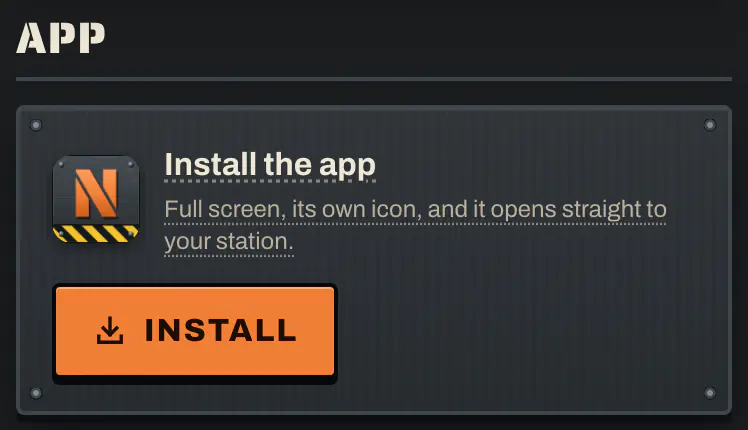
- When the Install Nullbelt card appears, tap Install. Or open Settings → App and tap Install the app.
- Confirm in Chrome's dialog.
On Android, long-press the Nullbelt icon for shortcuts straight to Station, Market and Fight.
Install on a computer (Chrome or Edge)#
- Open nullbelt.com in Chrome or Edge.
- Click Install on the Install Nullbelt card, or use Settings → App.
- Nullbelt opens in its own window and can be pinned to your taskbar or dock.
Tip
If Settings → App says Can't install from this browser, switch to Chrome on Android, Safari on iPhone or iPad, or Chrome or Edge on a computer. Firefox on a computer can play the game but can't install it.
Updates#
The app updates itself. If a new version goes live while Nullbelt is open, a banner says A new version of Nullbelt is ready. Tap Reload to switch. Nothing you have is lost, because your pilot, cargo, credits and Flux live on the server.
Top-bar timers and quick actions#
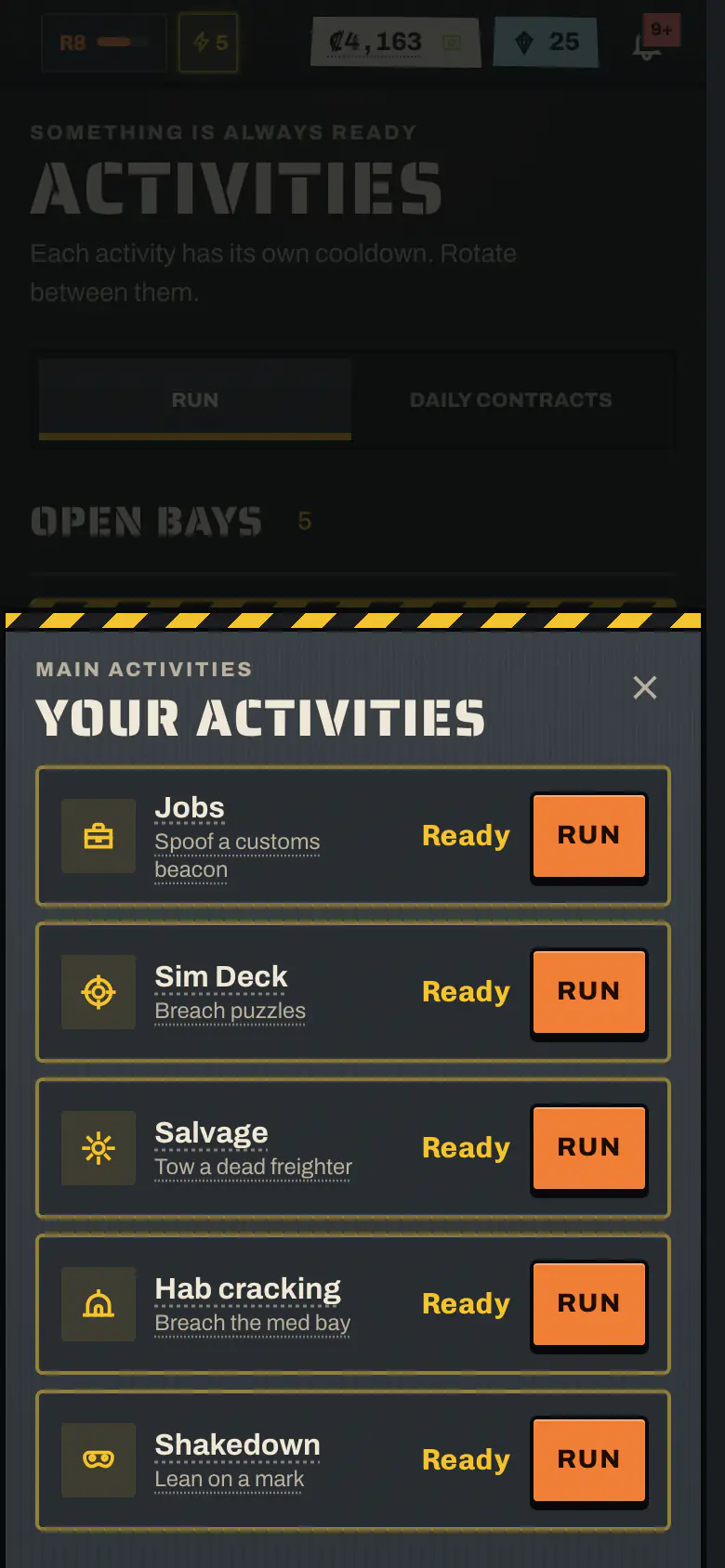
Every activity has a cooldown. The top bar keeps an eye on the five main activities for you, always in the same order: Jobs, Sim Deck, Salvage, Hab cracking and Shakedown. Activities you haven't unlocked yet stay hidden.

On a computer (from 1024 px wide):
- Each activity has a chip with its icon and a countdown. When it's done it glows and says Ready. Chips never change places, so you always know where to click.
- Click a Ready chip to run that activity at once, with the option you last picked for it on the Activities screen. A toast shows the result and what it paid, with View for the full result.
- If not every chip fits, a +N chip opens the full list.
On a phone:
- The top bar shows one summary: how many activities are Ready, or the next countdown.
- Tap it to open a sheet with every timer. A Ready activity has a Run button, and every row has Go to open it.
- The Activities tab shows a small badge with how many main activities are ready.
When you're in the brig or in transit, the timers are replaced by one chip that says why nothing can run, with a link to the Brig or to Travel.
Note
Shakedown robs another pilot, so it needs a verified email (SMS verification is switched off for now). If you aren't verified yet, its chip opens the Shakedown page instead of running, and its key only shakes the chip. See Account and security.
Keyboard shortcuts (hotkeys)#
On a computer (from 1024 px wide, where the chips show), the number keys are quick actions with a fixed mapping. Each key is tied to one activity, whatever is Ready:
| Key | Activity |
|---|---|
| 1 | Jobs |
| 2 | Sim Deck |
| 3 | Salvage |
| 4 | Hab cracking |
| 5 | Shakedown |
- A key always means the same activity. Press it when that activity is Ready to run it with the option you last picked. Press it too early and its chip gives a little shake and nothing happens.
- A key for an activity you haven't unlocked yet does nothing. In the brig or in transit no key runs anything.
- Only the plain keys count: not with Shift, Ctrl, Alt or Cmd, and holding a key down doesn't repeat it.
- Hotkeys never fire while you're typing in a field, or while a sheet or dialog is open.
- They're on by default. Turn them off in Settings → Keyboard with Number keys run ready actions. The choice is saved on this device.
- Esc closes sheets and lists. In crew chat, Enter sends a line and Shift+Enter starts a new line.
Notifications in the game#
Nullbelt has no push notifications. Two things keep you informed instead:
The bell#
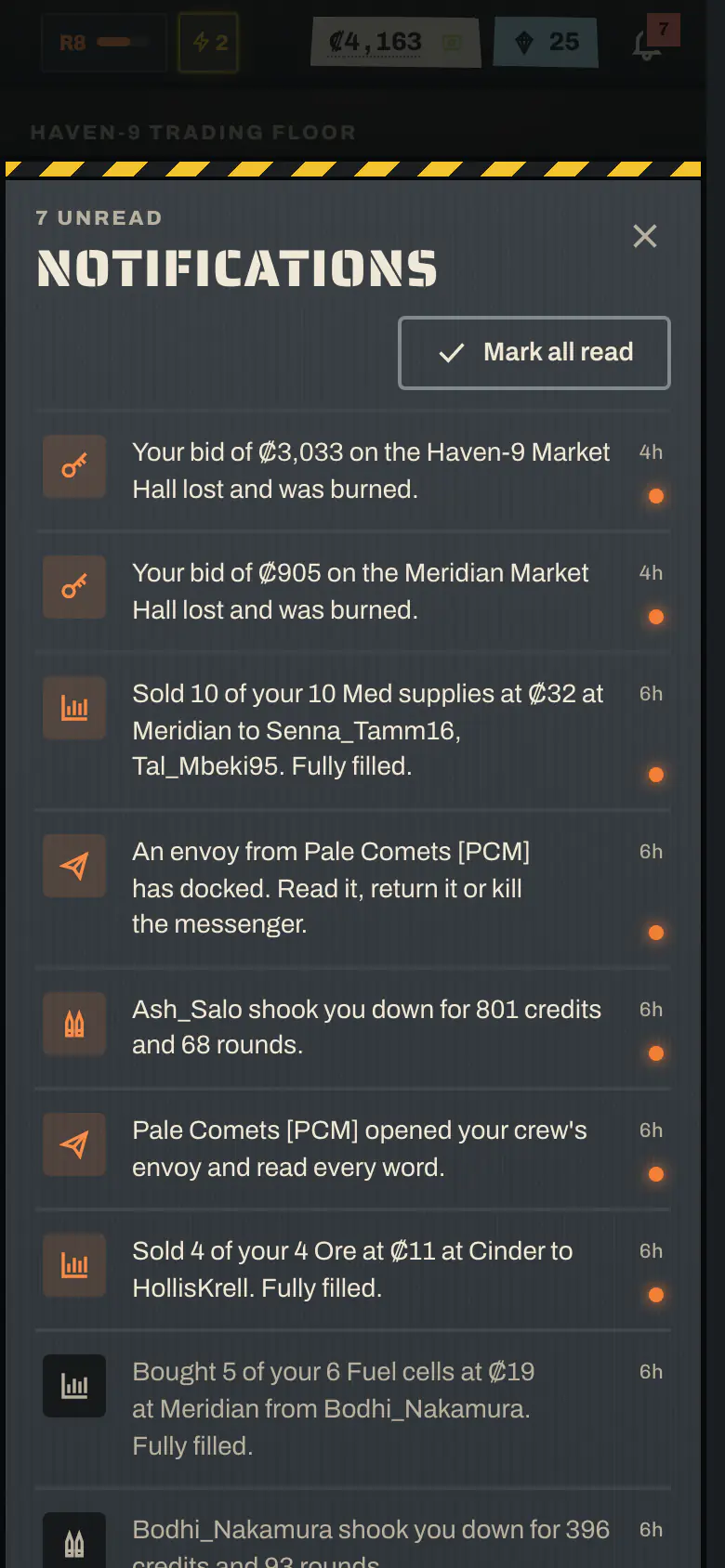
The bell in the top bar collects everything that happened to you, with a count of unread items: attacks and Shakedowns on you, crew invites and requests, vault requests, envoys, Exchange orders that filled, concession results, recruits and Prime grants. Tap a notification to jump straight to it, for example a fight report or your orders.
Ready pings#
Tap the bell icon on an activity, on the Brig, or on Travel's engine cooldown to get a ping when it's ready. Use Ping me when anything is ready to cover every activity at once.
- Your browser asks for permission to show notifications the first time.
- Pings reach you while Nullbelt is open, even in a background tab. They can't reach a closed app.
- If notifications are blocked in your browser, the ping still shows inside the game.
- Settings → Notifications → Market fills pings this device when one of your Exchange orders fills while the game is in another tab.
- These choices are saved on this device only.
Tip
Leave Nullbelt open in a background tab while you work, with pings on, and you'll know the moment a cooldown ends or you're out of the brig.
Frequently asked questions#
Is there a Nullbelt app?
Nullbelt runs in your browser, and you can install it as an app from the browser: on iPhone with Safari's Add to Home Screen, and on Android or a computer with the Install button in Chrome or Edge. It isn't in the App Store or Google Play.
How do I install Nullbelt on iPhone?
Open nullbelt.com in Safari, tap Share in the toolbar, choose Add to Home Screen, then tap Add. Nullbelt then opens full screen from its own icon.
Does the Nullbelt app send push notifications?
No. Pings for ready activities reach you while Nullbelt is open, even in a background tab, but they can't reach a closed app. The bell in the top bar keeps every notification for when you come back.
Do I lose progress if I install the app?
No. Your pilot, cargo, credits and Flux all live on the server. The app and the browser show the same account, and you log in once.
Are there keyboard shortcuts in Nullbelt?
Yes, on a computer. The number keys are a fixed mapping: 1 is always Jobs, 2 Sim Deck, 3 Salvage, 4 Hab cracking and 5 Shakedown. A key runs its activity when that top-bar timer says Ready. You can switch them off in Settings → Keyboard.